
Quickstart
In five minutes you’ll design a one-page template with a Name variable, download it as a
PDF, then generate the same PDF with a single HTTP call.
1. Design a template
Section titled “1. Design a template”-
Sign in at app.imprime.io/login with your email, or with Google, Microsoft or GitHub.
-
On My Templates, click New Template. The editor opens on a blank page.
-
Rename the template by typing in the title field at the top left, e.g.
Welcome card. Changes are saved automatically. -
Pick the text tool (the Tт icon in the toolbar), then click and drag on the canvas to draw a text box. Type
Hello. -
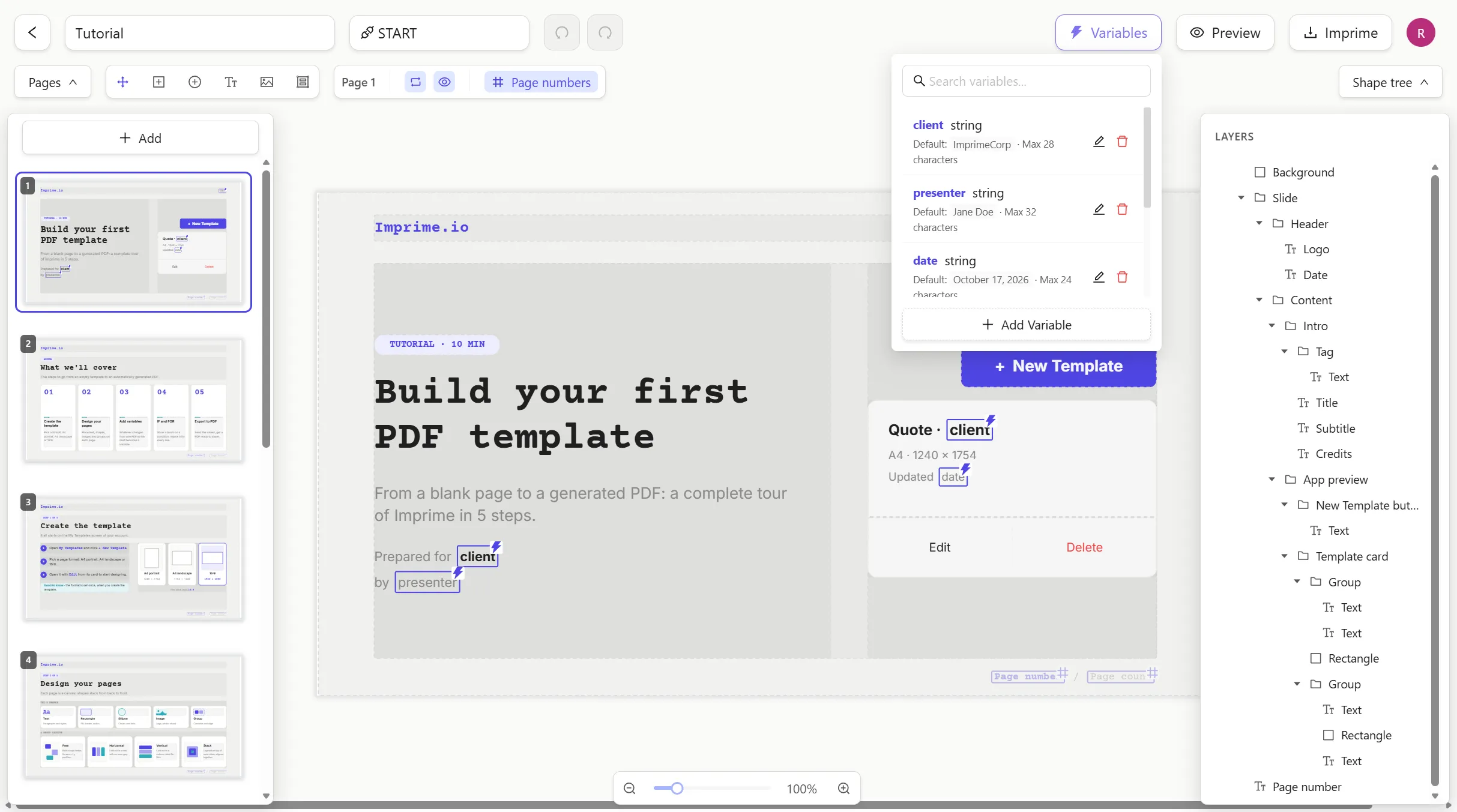
With the cursor still in the text box, click ⚡ Variables → Add Variable. Name it
Name, switch Required on and click Create. The variable is inserted where your cursor was. -
Type
!after the variable. Your page now reads HelloName!
2. Generate it
Section titled “2. Generate it”Click Imprime at the top right. Because the template has variables, a Variable Values
form opens: type Ada in the Name field and click Export PDF. You get a PDF that reads
Hello Ada !
3. Generate it with the API
Section titled “3. Generate it with the API”-
Grab the template ID from the editor URL — it’s the last segment:
https://app.imprime.io/editor/6ada52d12b452e53f3c518e3└───── template ID ─────┘ -
Create an API key: click your avatar (top right) → API Keys → New key. Copy the key now — it is shown only once.
-
Call the export endpoint with your variable values as JSON:
Terminal window curl -X POST "https://app.imprime.io/api/export/<templateId>/pdf" \-H "x-api-key: <your-api-key>" \-H "Content-Type: application/json" \-d '{ "Name": "Ada" }' \-o welcome.pdfimport { writeFile } from 'node:fs/promises';const res = await fetch(`https://app.imprime.io/api/export/${templateId}/pdf`, {method: 'POST',headers: {'x-api-key': process.env.IMPRIME_API_KEY,'Content-Type': 'application/json',},body: JSON.stringify({ Name: 'Ada' }),});if (!res.ok) throw new Error(await res.text());await writeFile('welcome.pdf', Buffer.from(await res.arrayBuffer()));import os, requestsres = requests.post(f"https://app.imprime.io/api/export/{template_id}/pdf",headers={"x-api-key": os.environ["IMPRIME_API_KEY"]},json={"Name": "Ada"},)res.raise_for_status()open("welcome.pdf", "wb").write(res.content)
That’s it: one template, one endpoint, as many PDFs as you need.
Next steps
Section titled “Next steps”- Understand the building blocks in Core concepts.
- Follow a complete invoice recipe.
- Let Claude generate PDFs for you with MCP.