
Claude (web & desktop)
Claude’s custom connectors support OAuth: you paste Imprime’s URL, sign in once, and Claude can use your templates in any conversation.
Add the connector
Section titled “Add the connector”-
In Claude, open Settings → Connectors and click Add custom connector.
-
Fill in:
- Name:
Imprime.io - URL:
https://app.imprime.io/api/mcp(or<PUBLIC_APP_URL>/api/mcpon your own instance)
Leave the OAuth client ID and secret empty — Imprime supports dynamic client registration.
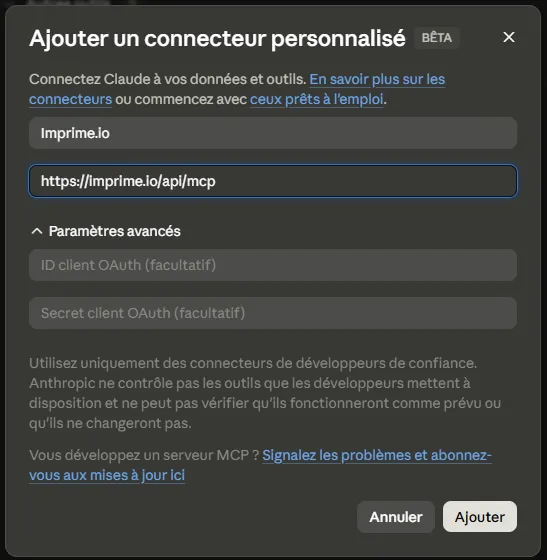
- Name:
-
Click Add, then Connect. A browser window opens on Imprime’s sign-in page.
-
Sign in. If Imprime asks you to Authorize access, check the application name and click Allow. You’re sent back to Claude.
The connector is now available: enable it in a conversation from the tools menu.
Try it
Section titled “Try it”List my Imprime templates.
Generate the “Tutorial” template for ACME Corp.
Design me an A4 invoice template: header with my logo, client block, a table of line items and a total.
Claude answers with images of the rendered pages and a link to the document.
Disconnecting
Section titled “Disconnecting”Remove or disconnect the connector in Settings → Connectors. To revoke all access on the Imprime side, sign out of your other sessions or change your password.