
Variables
Variables are what turn a document into a template. A variable is a named placeholder, inserted in text, that receives a different value each time you generate a PDF.
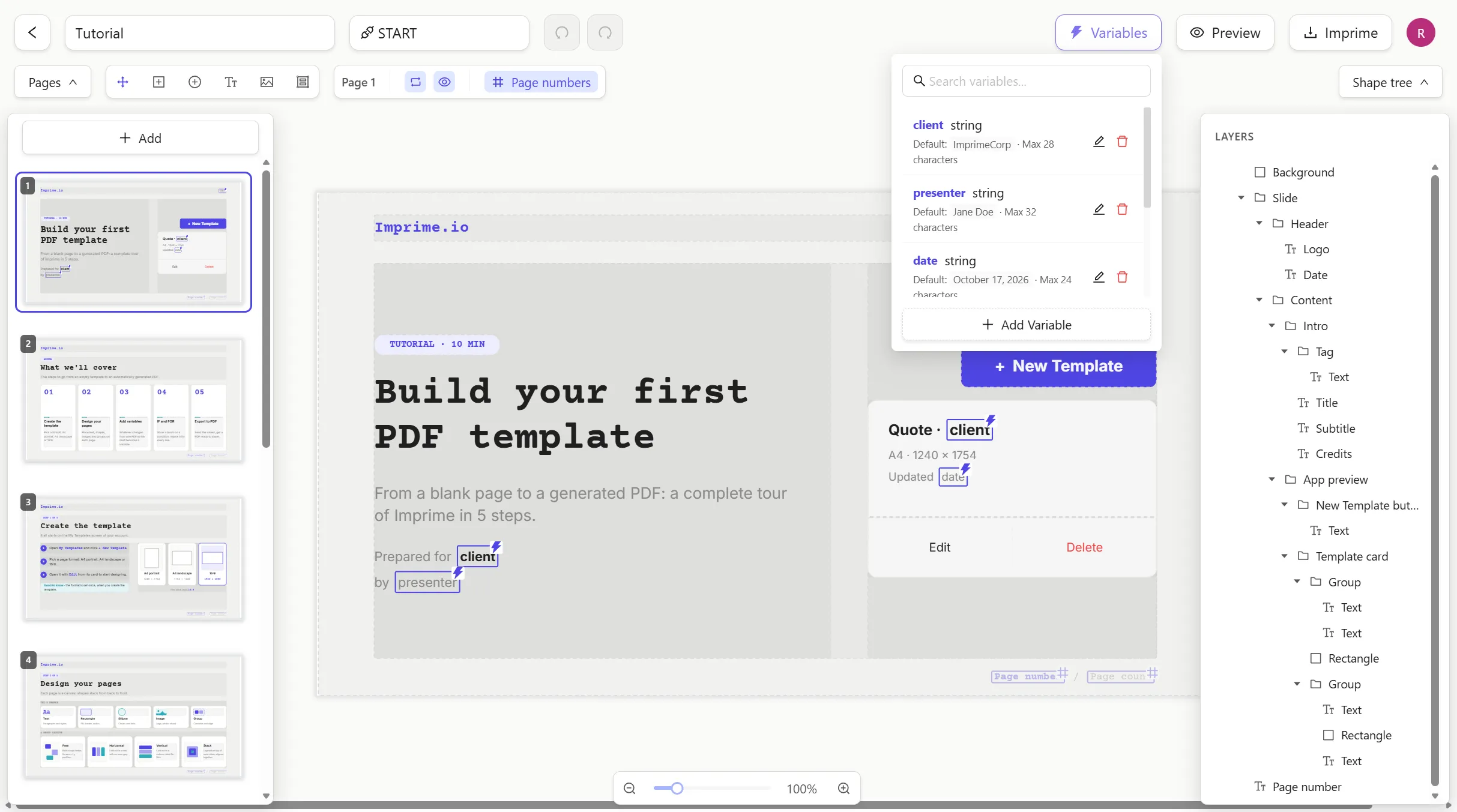
Creating and inserting a variable
Section titled “Creating and inserting a variable”-
Click inside a text box and put the cursor where the value should appear. (The ⚡ Variables button is only enabled when the cursor is in a text box with nothing selected.)
-
Click ⚡ Variables. The panel lists the variables of the template.
-
Click Add Variable and fill in the form:
- Name — letters, digits and underscores, not starting with a digit
(
customerName,invoice_number,Total2). It must be unique within the template. - Required — if on, a PDF can’t be generated without a value.
- Default Value — used when no value is provided. Disabled when Required is on.
- Name — letters, digits and underscores, not starting with a digit
(
-
Click Create. The variable is inserted at your cursor, shown as a framed chip with a ⚡.
To insert an existing variable, open the panel and click it. Use the search field when the list gets long. You can insert the same variable as many times as you need, in any text box, on any page.
Formatting a variable
Section titled “Formatting a variable”A variable is formatted like the text around it: font, size, color, bold, italic and underline are applied to the value in the PDF.
Naming conventions
Section titled “Naming conventions”Variable names are what your code and your AI agents send, so pick names that read well in JSON:
{ "customerName": "Ada Lovelace", "invoiceNumber": "INV-2026-0042", "issueDate": "October 22, 2026", "total": "€1,250.00"}Required vs. default
Section titled “Required vs. default”| Variable setup | No value sent | Value sent |
|---|---|---|
| Required | ❌ Export fails (400) | Value |
| Optional with default | Default | Value |
| Optional, no default | Empty | Value |
Deleting a variable
Section titled “Deleting a variable”Open the ⚡ Variables panel, hover the variable and click the trash icon. A variable that is still used in a text box can’t be deleted: remove it from the text first (select the chip and press Backspace).
Beyond text
Section titled “Beyond text”Variables are not limited to text:
| Type | What it does |
|---|---|
string |
Text inserted where the variable sits |
boolean |
Shows or hides a shape, a group or a whole page |
image |
A picture that changes from one document to the next |
object-list |
A repeating block — invoice lines, agenda items, a table |
A shape (or a page) can be shown only when a boolean is true, and a group can repeat once per item of a list — the way tables and item lists are built.
See Variable types for what to send at export time.