
The editor
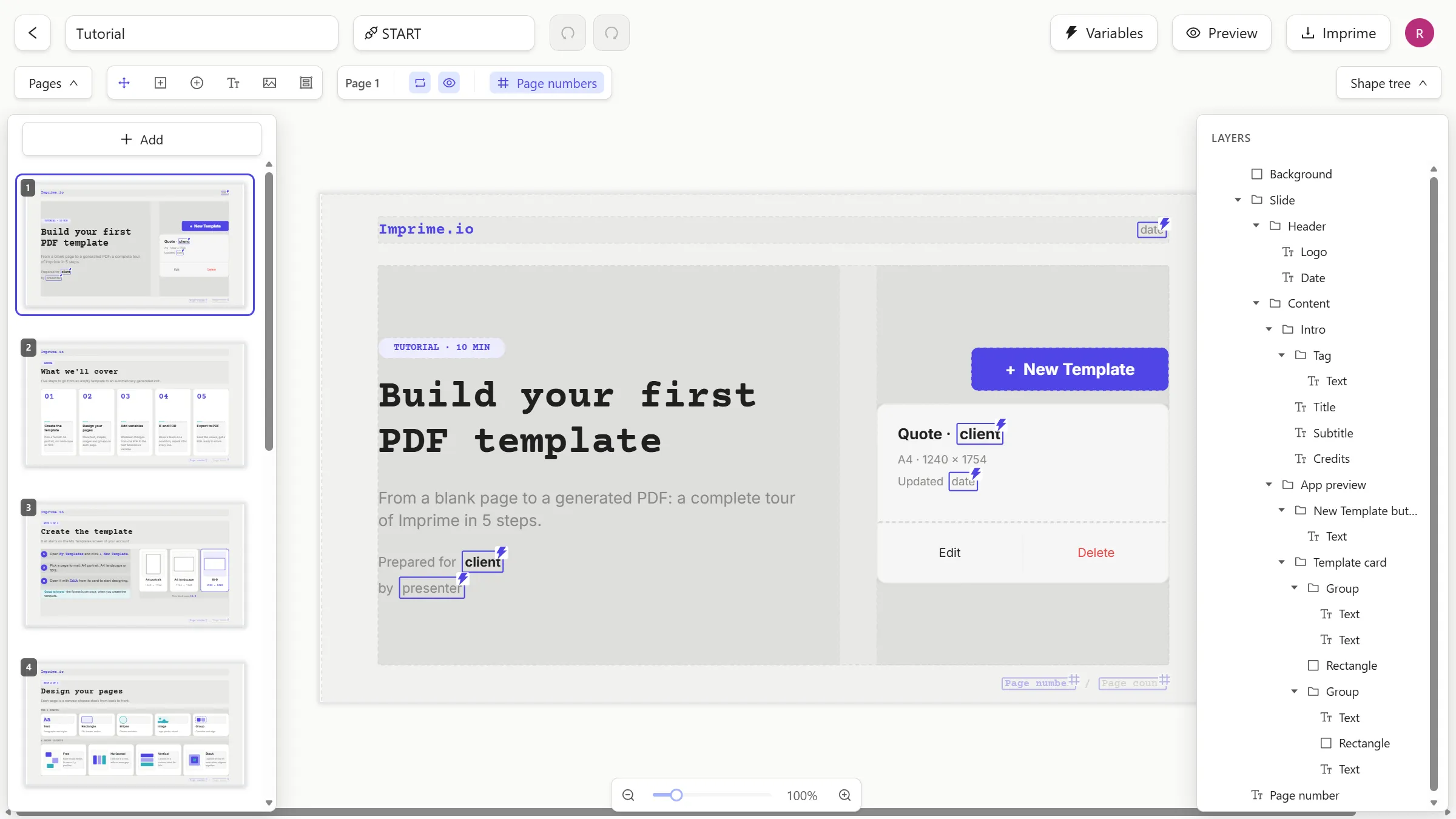
The editor is split into four areas:
- Header — back arrow to your templates, the title and code fields, undo/redo, and Variables, Preview and Imprime.
- Pages panel (left) — thumbnails of every page.
- Toolbar and context bar (top) — the tools, and the options of the selected tool or shape.
- Canvas (center) — the current page, with a zoom bar at the bottom right.
Type in the title field next to the back arrow. The title is saved half a second after you stop
typing, and is also used as the file name of exported PDFs (<title>.pdf).
Each page becomes one page of the PDF, on the template’s canvas.
| Action | How |
|---|---|
| Add a page | + Add at the top of the pages panel. The new page is inserted after the current one. |
| Go to a page | Click its thumbnail. |
| Reorder | Drag a thumbnail and drop it where the indigo insertion line appears. |
| Delete | Hover a thumbnail and click the red trash icon, then confirm. The last remaining page can’t be deleted. |
Toolbar
Section titled “Toolbar”| Tool | Icon | What it does |
|---|---|---|
| Move | ✥ | Select, drag and resize shapes. Active by default. |
| Rectangle | ⊞ | Click and drag on the canvas to draw a rectangle. |
| Ellipse | ⊕ | Click and drag to draw an ellipse or a circle. |
| Text box | Tт | Click and drag to draw a text box, then type. |
| Image | 🖼 | Opens a file picker and places the image in the center of the page. |
After you draw a shape, the editor switches back to Move and selects the new shape.
Context bar
Section titled “Context bar”Next to the toolbar, the context bar adapts to what you’re doing:
- with a rectangle or ellipse — fill, stroke and (for rectangles) corner radius (details);
- inside a text box — font, size, color, bold / italic / underline and the ⚡ Variables button (details).
Selecting, moving and resizing
Section titled “Selecting, moving and resizing”With the Move tool, click a shape to select it. Drag it to move it, and drag the handles of the dashed selection frame to resize it.
Layering and deleting
Section titled “Layering and deleting”When a shape is selected, a small vertical toolbar appears to its right:
| Button | Effect |
|---|---|
| 🗑 (red) | Delete the shape (with confirmation) |
| ⤒ Bring to front | Put the shape above all others |
| ⌃ Bring forward | Move it one level up |
| ⌄ Send backward | Move it one level down |
| ⤓ Send to back | Put the shape below all others |
The stacking order you see on the canvas is exactly the one rendered in the PDF.
Use the zoom bar at the bottom right: − / + step through 25 %, 50 %, 75 %, 100 %, 125 %, 150 % and 200 %; the slider allows anything in between, and clicking the percentage resets to 100 %. Zoom only affects your view, never the PDF.